
Quickstart
Use the Vision AI web app in a few steps. The app is already deployed—open its URL in your browser.
1. Open the app
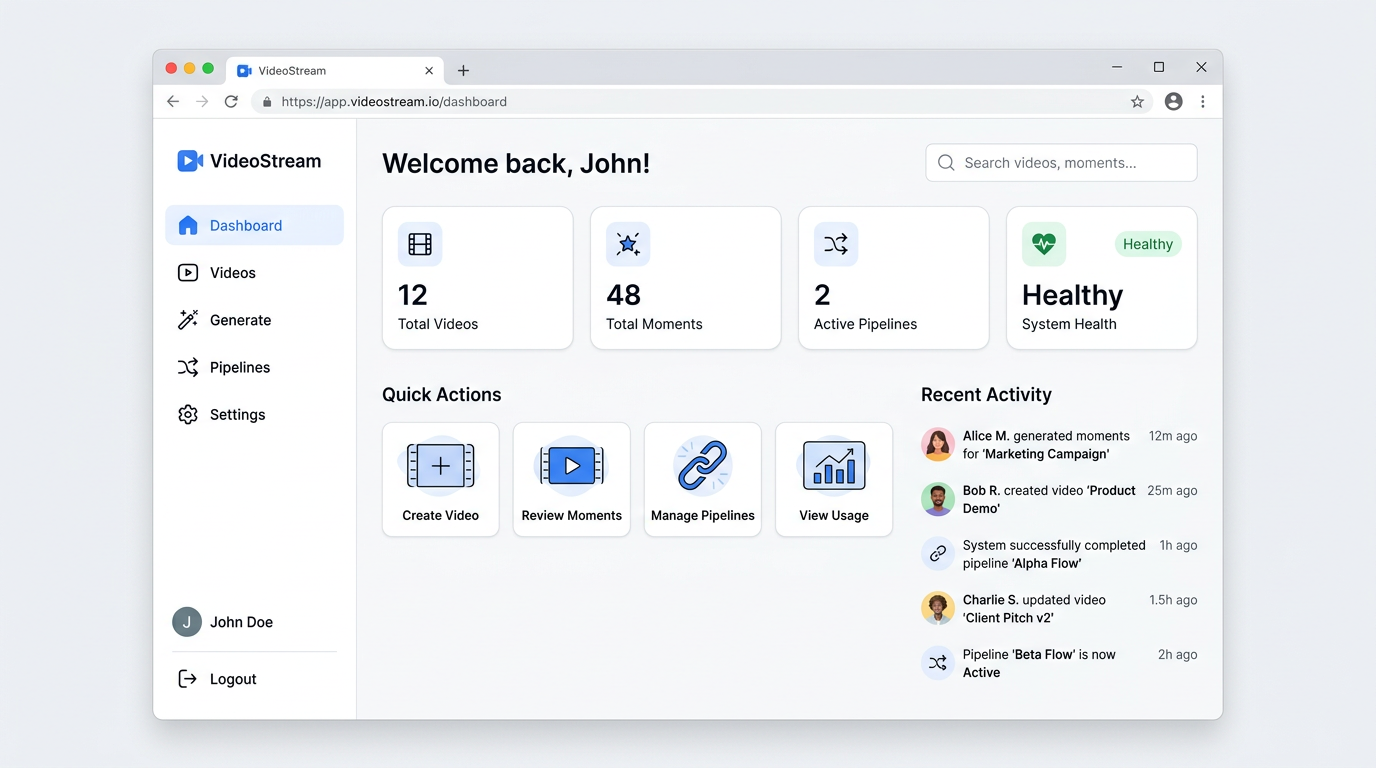
Open the Vision AI URL in your browser (e.g. http://localhost:3005 in local setups). You’ll see the Dashboard with stat cards (Total Videos, Total Moments, Active Pipelines, System Health), quick actions, and recent activity.
2. Use the sidebar
The left sidebar is your main navigation:
- Dashboard – Overview and quick links.
- Videos – Video library (grid or list). Click a video to open its detail page.
- Generate – Create moments from a video URL (enter URL → configure → run → view results).
- Pipelines – View pipeline status and history.
- Settings – System and model settings.
Use the theme toggle (light/dark) at the bottom of the sidebar if available.
3. Videos and video detail
- From Videos, use the toolbar to search, filter, sort, and switch between grid/list view.
- Click a video to open its detail page: video player, moments sidebar, and tabs (Overview, Transcript, Pipeline, Clips).
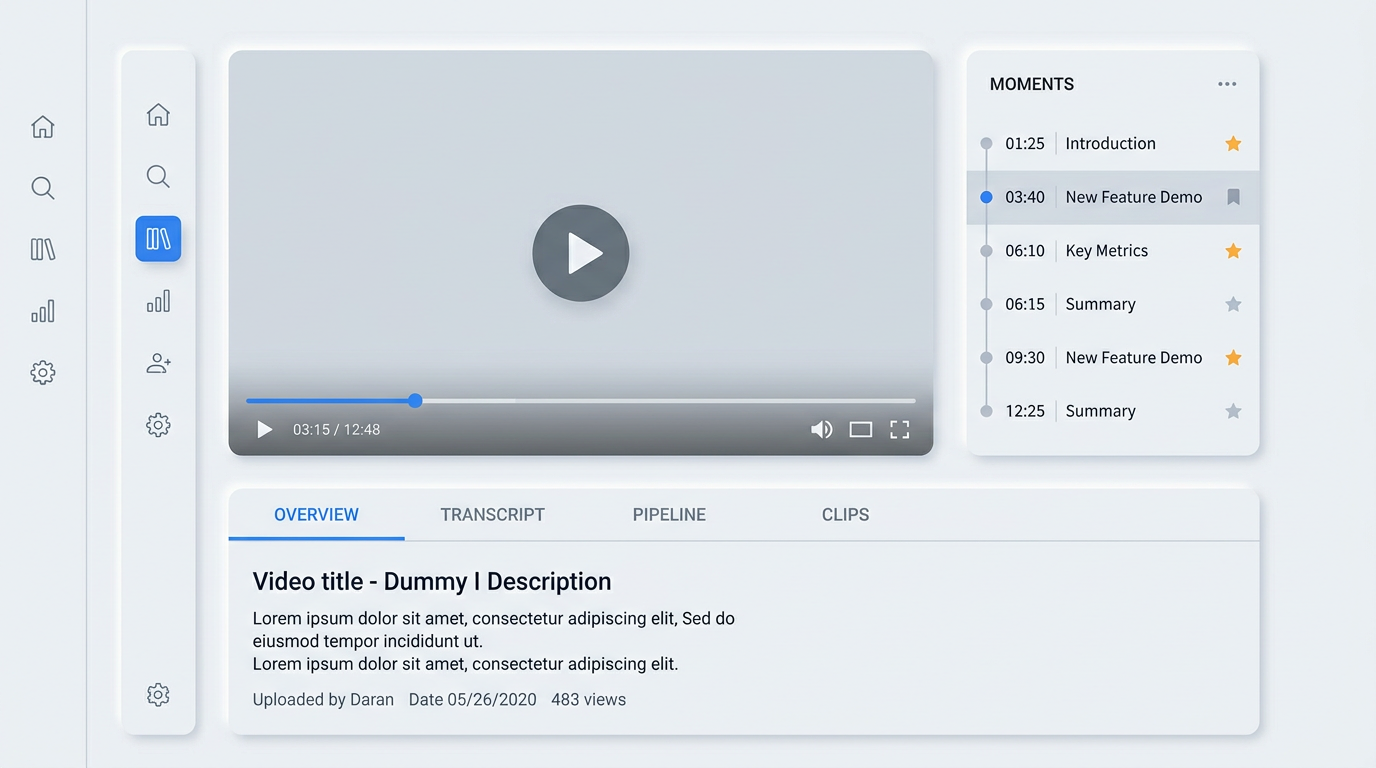
- In the player: Space = play/pause, ← / → = seek 5 seconds, F = fullscreen. Press ? anywhere to see all keyboard shortcuts.
4. Generate moments from a URL
- Go to Generate.
- Enter a video URL and (optionally) adjust configuration.
- Start the run and follow progress; when done, view the generated moments in the results.
For the full shortcut list and more detail on each section, see References.