
How-to
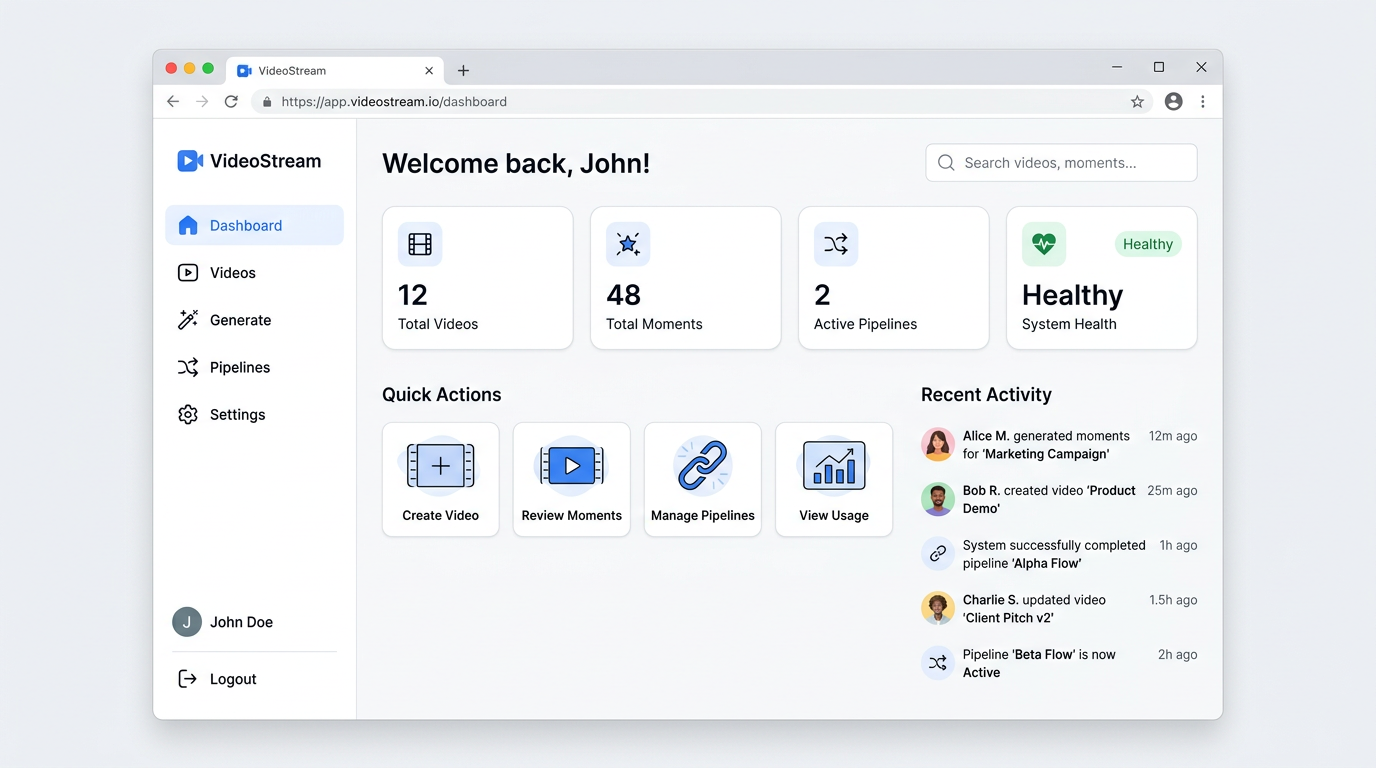
Short, task-focused guides for using the Vision AI web app.
Navigation & basics
- Open the app – Go to the Vision AI URL in your browser (e.g. http://localhost:3005). You land on the Dashboard.
- Switch sections – Use the left sidebar: Dashboard, Videos, Generate, Pipelines, Settings.
- See all shortcuts – Press ? to open the keyboard shortcuts dialog.
Videos and playback
- Browse videos – Click Videos in the sidebar. Use the toolbar to search, filter, sort, and switch between grid and list view.
- Open a video – Click a video in the library. The detail page shows the player, moments sidebar, and tabs (Overview, Transcript, Pipeline, Clips).
- Play and control – Use the player controls or Space (play/pause), ← / → (seek 5 seconds), F (fullscreen).
- Jump to a moment – In the moments sidebar, click a moment to seek the player to that time.
Generate and pipelines
- Generate moments from a URL – Go to Generate, enter the video URL, set options if needed, start the run. Check progress and results on the same page.
- Check pipeline status – Go to Pipelines for all runs, or open a video and use the Pipeline tab for that video’s history.
- Close dialogs – Press Esc to close modals and drawers.
The app is already deployed—open its URL and use the steps above. For a full feature list and shortcuts, see References.